> ## Documentation Index
> Fetch the complete documentation index at: https://docs.powabase.ai/llms.txt
> Use this file to discover all available pages before exploring further.
# Auth & Connection
> Find your project's credentials in the Connect modal, pick the right key for each surface, and make your first authenticated request.
Every Powabase project keeps its connection details in one place: the **Connect modal** in the Studio. It holds the Project URL, both API keys (Anon and Service Role), the JWT Secret, the Database URL, and ready-to-paste Postgres connection strings in nine driver formats. Open it once, copy what you need, and you can call any part of the platform.
## Open the Connect modal
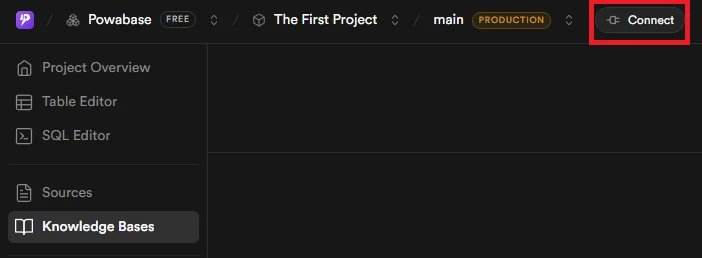
In the Studio at [app.powabase.ai](https://app.powabase.ai), click the **Connect** button in the top-right of your project header.
 The dialog has two tabs. **API Keys** lists everything you need to authenticate HTTP and Postgres clients. **Connection Strings** ships pre-filled snippets for psql, the generic URI, Node.js (pg), Python (psycopg2), Go (database/sql), JDBC, .NET, PHP, and SQLAlchemy: nine in all. Copy buttons sit next to every value. Secret fields hide by default; click the eye icon to reveal.
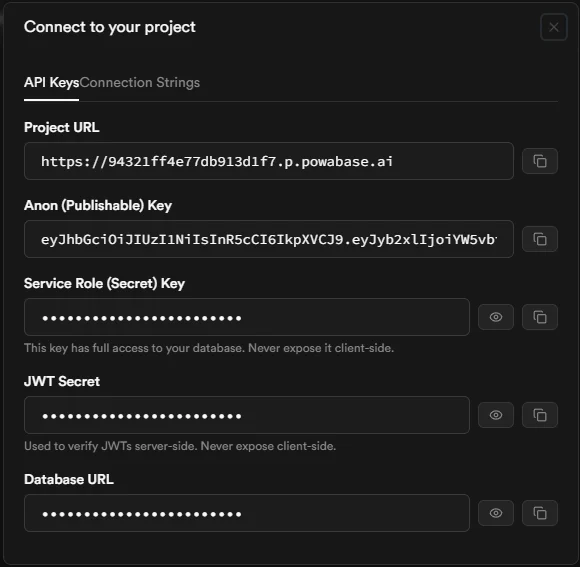 You can also open the modal by appending `?showConnect=true` to any project URL, which is handy for deep-linking from internal docs.
## What's in the modal, and where to use each value
| Field | Use it for | Safe to ship to clients? |
| ----------------------------- | ------------------------------------------------------------------------------------ | ------------------------ |
| **Project URL** | The `BASE_URL` for every HTTP call — `/api/*`, `/rest/v1/*`, `/auth/*`, `/storage/*` | Yes |
| **Anon (Publishable) Key** | Client-side calls to PostgREST and Storage that respect Row Level Security | Yes |
| **Service Role (Secret) Key** | Server-side calls to `/api/*` (AI surface) and any RLS-bypassing PostgREST access | **No — server only** |
| **JWT Secret** | Verifying user-signed JWTs on your own backend | **No — server only** |
| **Database URL** | Direct Postgres access (psql, migrations, ORMs, BI tools) | **No — server only** |
The rest of this guide uses the **Service Role (Secret) Key** as `API_KEY`. It authenticates every endpoint under `/api/*`, which is what most of the platform docs assume.
Never expose the Service Role key, JWT Secret, or Database URL to a browser, mobile app, or any environment outside your control. The Anon key is the only field in the modal safe to bundle into a client.
## Use it from code
Every request to /api/\* and /rest/v1/\* needs **both** an `apikey` header and an `Authorization: Bearer` header, set to the same key. Use the Service Role (Secret) Key for /api/\* and server-side PostgREST.
**Endpoint:** `Headers: apikey + Authorization`
Sending only one of the two headers is the most common cause of 401 errors. PostgREST and Kong both reject the request.
```python Python theme={null}
import requests
BASE_URL = "{BASE_URL}" # Connect modal -> Project URL
API_KEY = "{API_KEY}" # Connect modal -> Service Role (Secret) Key
headers = {
"apikey": API_KEY,
"Authorization": f"Bearer {API_KEY}",
"Content-Type": "application/json",
}
```
```typescript TypeScript theme={null}
const BASE_URL = "{BASE_URL}"; // Connect modal -> Project URL
const API_KEY = "{API_KEY}"; // Connect modal -> Service Role (Secret) Key
const headers = {
apikey: API_KEY,
Authorization: `Bearer ${API_KEY}`,
"Content-Type": "application/json",
};
```
```bash cURL theme={null}
# BASE_URL -> Project URL from the Connect modal
# API_KEY -> Service Role (Secret) Key from the Connect modal
-H "apikey: {API_KEY}" \
-H "Authorization: Bearer {API_KEY}" \
-H "Content-Type: application/json"
```
Hit a cheap, idempotent endpoint to confirm the credentials work end-to-end. An empty array and a populated array both count as success.
**Endpoint:** `GET /api/agents`
```python Python theme={null}
response = requests.get(
f"{BASE_URL}/api/agents",
headers=headers,
)
print(response.json())
```
```typescript TypeScript theme={null}
const response = await fetch(`${BASE_URL}/api/agents`, { headers });
const agents = await response.json();
console.log(agents);
```
```bash cURL theme={null}
curl '{BASE_URL}/api/agents' \
-H "apikey: {API_KEY}" \
-H "Authorization: Bearer {API_KEY}"
```
**Response:**
```json theme={null}
{
"agents": [
{
"id": "uuid-here",
"name": "My Agent",
"model": "gpt-4o",
"created_at": "2026-01-01T00:00:00Z"
}
],
"total": 1,
"limit": 50,
"offset": 0
}
```
For migrations, dashboards, ORMs, or any tool that speaks the Postgres wire protocol, grab the **Database URL** from the API Keys tab, or open the **Connection Strings** tab and copy a pre-built snippet in your language. Use this from servers and trusted environments only.
**Endpoint:** `Postgres wire protocol`
The Database URL embeds the database password in cleartext. Treat it like the Service Role key: never commit it, never expose it client-side, and rotate the database password (Studio → Settings → Database) if it leaks.
```python Python theme={null}
# Python (psycopg2) — from Connection Strings -> Python
import psycopg2
conn = psycopg2.connect("{POSTGRES_URL}") # Database URL from the Connect modal
with conn.cursor() as cur:
cur.execute("select count(*) from public.users")
print(cur.fetchone())
```
```typescript TypeScript theme={null}
// Node.js (pg) — from Connection Strings -> Node.js
import { Client } from "pg";
const client = new Client({ connectionString: "{POSTGRES_URL}" }); // Database URL
await client.connect();
const { rows } = await client.query("select count(*) from public.users");
console.log(rows);
```
```bash cURL theme={null}
# psql — from Connection Strings -> PSQL
psql "{POSTGRES_URL}"
```
## What's Next
Build an end-to-end RAG agent in 5 minutes.
AI schema vs public schema, plus PostgREST and direct Postgres usage.
How Kong routes /api/*, /rest/v1/*, /auth/*, and /storage/* to your project's stack.
You can also open the modal by appending `?showConnect=true` to any project URL, which is handy for deep-linking from internal docs.
## What's in the modal, and where to use each value
| Field | Use it for | Safe to ship to clients? |
| ----------------------------- | ------------------------------------------------------------------------------------ | ------------------------ |
| **Project URL** | The `BASE_URL` for every HTTP call — `/api/*`, `/rest/v1/*`, `/auth/*`, `/storage/*` | Yes |
| **Anon (Publishable) Key** | Client-side calls to PostgREST and Storage that respect Row Level Security | Yes |
| **Service Role (Secret) Key** | Server-side calls to `/api/*` (AI surface) and any RLS-bypassing PostgREST access | **No — server only** |
| **JWT Secret** | Verifying user-signed JWTs on your own backend | **No — server only** |
| **Database URL** | Direct Postgres access (psql, migrations, ORMs, BI tools) | **No — server only** |
The rest of this guide uses the **Service Role (Secret) Key** as `API_KEY`. It authenticates every endpoint under `/api/*`, which is what most of the platform docs assume.
Never expose the Service Role key, JWT Secret, or Database URL to a browser, mobile app, or any environment outside your control. The Anon key is the only field in the modal safe to bundle into a client.
## Use it from code
Every request to /api/\* and /rest/v1/\* needs **both** an `apikey` header and an `Authorization: Bearer` header, set to the same key. Use the Service Role (Secret) Key for /api/\* and server-side PostgREST.
**Endpoint:** `Headers: apikey + Authorization`
Sending only one of the two headers is the most common cause of 401 errors. PostgREST and Kong both reject the request.
```python Python theme={null}
import requests
BASE_URL = "{BASE_URL}" # Connect modal -> Project URL
API_KEY = "{API_KEY}" # Connect modal -> Service Role (Secret) Key
headers = {
"apikey": API_KEY,
"Authorization": f"Bearer {API_KEY}",
"Content-Type": "application/json",
}
```
```typescript TypeScript theme={null}
const BASE_URL = "{BASE_URL}"; // Connect modal -> Project URL
const API_KEY = "{API_KEY}"; // Connect modal -> Service Role (Secret) Key
const headers = {
apikey: API_KEY,
Authorization: `Bearer ${API_KEY}`,
"Content-Type": "application/json",
};
```
```bash cURL theme={null}
# BASE_URL -> Project URL from the Connect modal
# API_KEY -> Service Role (Secret) Key from the Connect modal
-H "apikey: {API_KEY}" \
-H "Authorization: Bearer {API_KEY}" \
-H "Content-Type: application/json"
```
Hit a cheap, idempotent endpoint to confirm the credentials work end-to-end. An empty array and a populated array both count as success.
**Endpoint:** `GET /api/agents`
```python Python theme={null}
response = requests.get(
f"{BASE_URL}/api/agents",
headers=headers,
)
print(response.json())
```
```typescript TypeScript theme={null}
const response = await fetch(`${BASE_URL}/api/agents`, { headers });
const agents = await response.json();
console.log(agents);
```
```bash cURL theme={null}
curl '{BASE_URL}/api/agents' \
-H "apikey: {API_KEY}" \
-H "Authorization: Bearer {API_KEY}"
```
**Response:**
```json theme={null}
{
"agents": [
{
"id": "uuid-here",
"name": "My Agent",
"model": "gpt-4o",
"created_at": "2026-01-01T00:00:00Z"
}
],
"total": 1,
"limit": 50,
"offset": 0
}
```
For migrations, dashboards, ORMs, or any tool that speaks the Postgres wire protocol, grab the **Database URL** from the API Keys tab, or open the **Connection Strings** tab and copy a pre-built snippet in your language. Use this from servers and trusted environments only.
**Endpoint:** `Postgres wire protocol`
The Database URL embeds the database password in cleartext. Treat it like the Service Role key: never commit it, never expose it client-side, and rotate the database password (Studio → Settings → Database) if it leaks.
```python Python theme={null}
# Python (psycopg2) — from Connection Strings -> Python
import psycopg2
conn = psycopg2.connect("{POSTGRES_URL}") # Database URL from the Connect modal
with conn.cursor() as cur:
cur.execute("select count(*) from public.users")
print(cur.fetchone())
```
```typescript TypeScript theme={null}
// Node.js (pg) — from Connection Strings -> Node.js
import { Client } from "pg";
const client = new Client({ connectionString: "{POSTGRES_URL}" }); // Database URL
await client.connect();
const { rows } = await client.query("select count(*) from public.users");
console.log(rows);
```
```bash cURL theme={null}
# psql — from Connection Strings -> PSQL
psql "{POSTGRES_URL}"
```
## What's Next
Build an end-to-end RAG agent in 5 minutes.
AI schema vs public schema, plus PostgREST and direct Postgres usage.
How Kong routes /api/*, /rest/v1/*, /auth/*, and /storage/* to your project's stack.